
SPFx Series: A closer look at important pieces of code
Taking a closer look at important pieces of code
SPFx series
The main difference between an SPFx web part and an extension is that a web part is a component that allows the content of a page to be viewed or edited, while an extension customizes or extends the user interface of SharePoint or Microsoft Teams.
An SPFx webpart is a custom-built component that can be added to a SharePoint page to provide additional functionality. For example, it can be used to display a chart, a calendar, or a list of items. Web parts are usually used to modify or expand the content of the page.
An SPFx extension, on the other hand, is a custom-built piece of code that runs in the context of SharePoint or Microsoft Teams and can be used to customize or extend the SharePoint or Teams user interface. For example, it can be used to add a custom command to the command bars, add a custom header or footer, or customize the colours of the user interface. Extensions are used to customize the user interface of SharePoint or Teams and extend functionality.
There are three types of SPFx extensions:
Implementing an extension involves an XML, a clientSideInstance.xml or a elements.xml. You can find this XML in the SharePoint/assets folder of your solution in Visual Studio Code. These xml files are included in the feature of your solution (see features in the package-solution.json file)
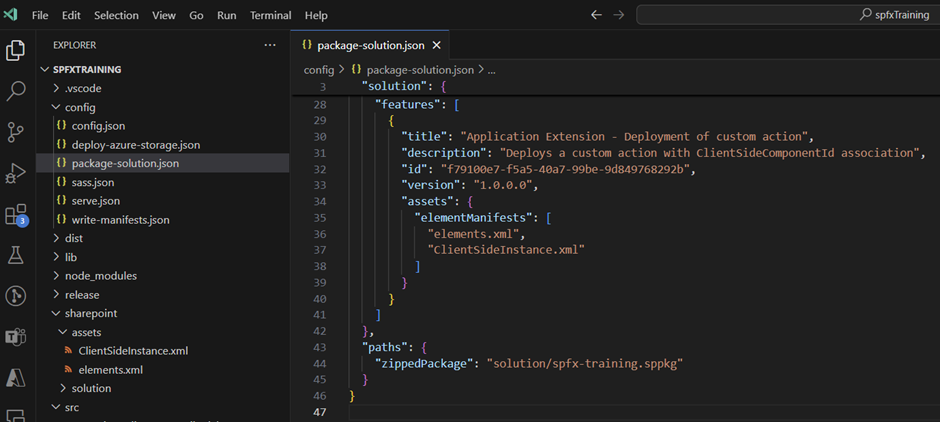
The difference between the 2 xml files lies in the fact that the clientSideInstance.xml is used to implement your extension Tenant wide. This is done when your app is deployed in the app catalogue. If a clientSideInstance.xml file is found during the deployment of your app, your extension will be implemented in the hidden Tenant Wide Extensions list. This means that every time your extension is loaded somewhere within SharePoint, the configuration for this extension is read from this Tenant Wide Extensions list.
If we look at the different properties in such an xml of a clientSideInstance, we can distinguish the following:
<?xml version="1.0" encoding="utf-8"?>
<Elements xmlns="http://schemas.microsoft.com/sharepoint/">
<ClientSideComponentInstance
Title="ListItemDetailsDialog"
Location="ClientSideExtension.ListViewCommandSet.CommandBar"
ListTemplateId="100"
Properties="{"sampleTextOne":"One item is selected in the list.", "sampleTextTwo":"This command is always visible."}"
ComponentId="acddd824-662e-47a5-a80e-6586b25c810a"
/>
</Elements>
When a elements.xml is found, this xml will be used in the implementation at site collection level. With this implementation, your extension will only be configured at site collection level. If we look at the xml of the elements.xml file, we can distinguish the following properties:
<?xml version="1.0" encoding="utf-8"?>
<Elements xmlns="http://schemas.microsoft.com/sharepoint/">
<CustomAction
Title="ListItemDetailsDialog"
RegistrationId="100"
RegistrationType="List"
Location="ClientSideExtension.ListViewCommandSet.CommandBar"
ClientSideComponentId="acddd824-662e-47a5-a80e-6586b25c810a"
ClientSideComponentProperties="{"sampleTextOne":"One item is selected in the list.", "sampleTextTwo":"This command is always visible."}">
/>
</Elements>
These 2 files are greased in your app, but when is it decided which xml to use? This happens when your app is implemented in the app catalogue. When we are going to implement this, we see the following screen appear:
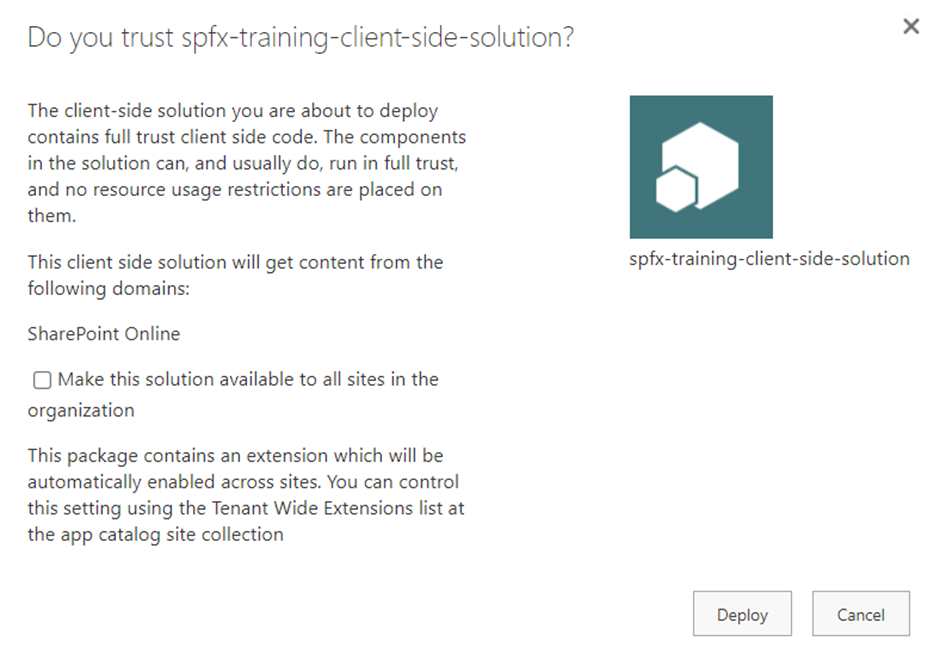
If you check “Make this solution available to all sites in the organization”, the clientSideInstance.xml file will be used and the extension will be implemented in the Tenant Wide Extensions list. If you don’t find this option, the elements.xml file will be used when you specifically add an app to a site collection.
Taking a closer look at important pieces of code

Taking a deeper look to web part properties

Let's take a closer look to the project structure

Create your first web part. Learn how to test and deploy to production

Learn how TypeScript, React, SCSS, and Fluent UI power modern SPFx solutions for Microsoft 365.

Everything you need to know to prepare your development environment
Explanation of SPFx

A look back before M365 in the cloud