
A first glance at Copilot Studio
What cool new features does Copilot Studio brings?
AI
Copilot
Ignite
This blogpost is the first of a series about building your MCP server, hosting it on Azure and finally implementing it in a M365 Copilot agent
The Model Context Protocol (MCP) is an open standard, originally introduced by Anthropic and now widely adopted, that defines how AI models communicate with external tools and data sources. Think of it as a universal adapter, instead of every AI assistant needing a bespoke integration for every API or service, MCP provides a single, consistent contract.
For Microsoft 365 Copilot specifically, MCP support means you can expose any capability - querying a database, calling a REST API, reading from SharePoint, executing business logic - as a set of tools that Copilot can discover and invoke on behalf of the user.
An MCP server exposes three primitives:
getProjectStatus, createTicket)For most Copilot agent scenarios, tools are what you’ll focus on.
We’ll write the server in plain JavaScript, no TypeScript compilation step needed, which keeps things simple and works great with the MCP Inspector for local testing.
mkdir my-mcp-server && cd my-mcp-server
npm init -y
npm install @modelcontextprotocol/sdk zod express
Update package.json to use ESM modules:
{
  "type": "module",
  "scripts": {
    "dev": "node server.js",
    "start": "node server.js"
  }
}
Create server.js in the project root. The key design decision here is a single file for both transports — STDIO for local development and the MCP Inspector, HTTP for Azure and Copilot. A single environment variable controls which one starts:
import { McpServer } from "@modelcontextprotocol/sdk/server/mcp.js";
import { StreamableHTTPServerTransport } from "@modelcontextprotocol/sdk/server/streamableHttp.js";
import { StdioServerTransport } from "@modelcontextprotocol/sdk/server/stdio.js";
import { z } from "zod";
import express from "express";

// Data (replace with your real data source)
const projects = {
  "PRJ-001": { name: "Intranet Redesign",  status: "In Progress", owner: "Arne" },
  "PRJ-002": { name: "Copilot Rollout",    status: "Planning",    owner: "Simon"   },
  "PRJ-003": { name: "Purview Governance", status: "Completed",   owner: "Nico"  },
};

// MCP server and tools (shared between both transports)
const server = new McpServer({ name: "project-status-server", version: "1.0.0" });

server.tool(
  "getProjectStatus",
  "Retrieves the current status and owner of a project by its ID.",
  { projectId: z.string().describe("The project ID, e.g. PRJ-001") },
  async ({ projectId }) => {
    const project = projects[projectId];
    if (!project) return { content: [{ type: "text", text: `Project ${projectId} not found.` }], isError: true };
    return { content: [{ type: "text", text: `**${project.name}** (${projectId})\nStatus: ${project.status}\nOwner: ${project.owner}` }] };
  }
);

server.tool(
  "updateProjectStatus",
  "Updates the status of a project.",
  {
    projectId: z.string().describe("The project ID"),
    status: z.enum(["Planning", "In Progress", "On Hold", "Completed"]).describe("The new status"),
  },
  async ({ projectId, status }) => {
    if (!projects[projectId]) return { content: [{ type: "text", text: `Project ${projectId} not found.` }], isError: true };
    projects[projectId].status = status;
    return { content: [{ type: "text", text: `Updated ${projectId} to "${status}".` }] };
  }
);

server.tool(
  "listProjects",
  "Returns a list of all projects with their current status.",
  {},
  async () => {
    const list = Object.entries(projects)
      .map(([id, p]) => `- **${id}** - ${p.name} (${p.status}, owner: ${p.owner})`)
      .join("\n");
    return { content: [{ type: "text", text: list }] };
  }
);

// Transport switch
if (process.env.TRANSPORT === "stdio") {
  // STDIO - for local development and MCP Inspector
  const transport = new StdioServerTransport();
  await server.connect(transport);
  console.error("MCP server running via STDIO");
} else {
  // HTTP - for Azure and Copilot
  const app = express();
  app.use(express.json());

  app.get("/health", (_req, res) => res.json({ status: "ok" }));

  app.post("/mcp", async (req, res) => {
    const transport = new StreamableHTTPServerTransport({ sessionIdGenerator: undefined });
    await server.connect(transport);
    await transport.handleRequest(req, res, req.body);
    res.on("finish", () => transport.close());
  });

  const PORT = process.env.PORT || 3000;
  app.listen(PORT, () => console.error(`MCP server running via HTTP on http://localhost:${PORT}`));
}
A few things worth highlighting:
process.env.TRANSPORT.console.error everywhere. In STDIO mode, stdout is reserved for JSON-RPC messages. Any console.log corrupts the protocol and causes cryptic JSON parse errors in the Inspector. Always use console.error for logging.StreamableHTTPServerTransport expects a pre-parsed request body. Express handles this cleanly out of the box.Start the server in HTTP mode:
node server.js
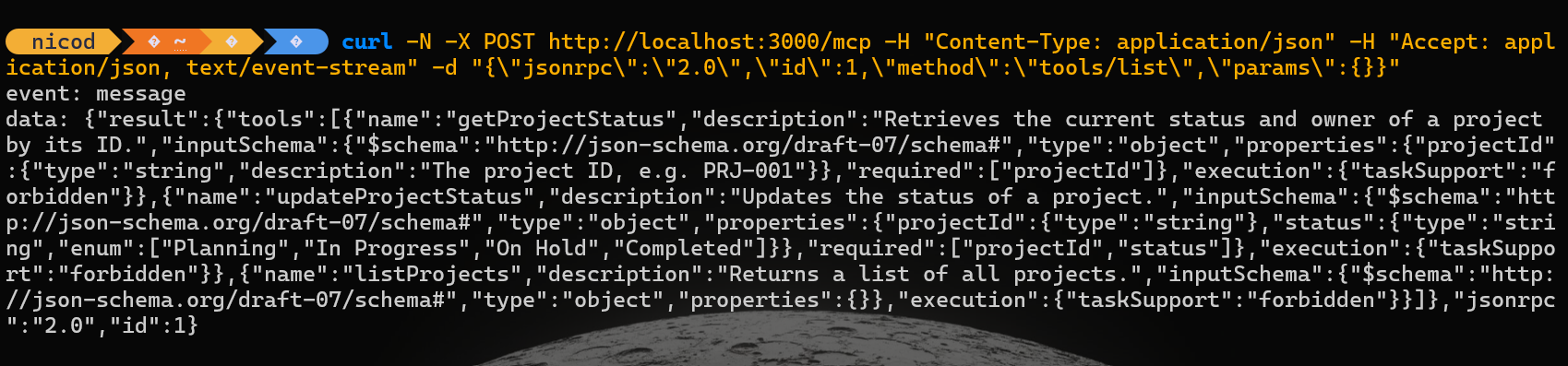
The MCP transport uses Server-Sent Events (SSE), so there are a few things to get right:
-N (no buffering) otherwise curl sits silentlyAccept: application/json, text/event-stream, without it you get a 406 Not Acceptablecurl -N -X POST http://localhost:3000/mcp -H "Content-Type: application/json" -H "Accept: application/json, text/event-stream" -d "{\"jsonrpc\":\"2.0\",\"id\":1,\"method\":\"tools/list\",\"params\":{}}"
A successful response looks like:
The MCP Inspector gives you a proper browser UI to browse and call tools interactively.
npx @modelcontextprotocol/inspector
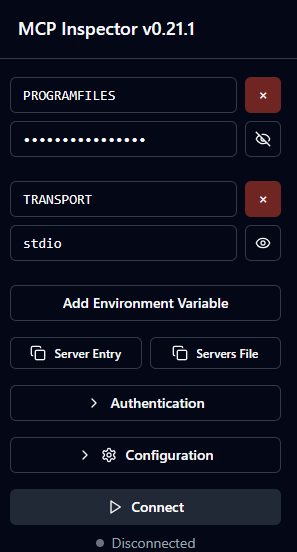
Configure the connection in the Inspector UI:
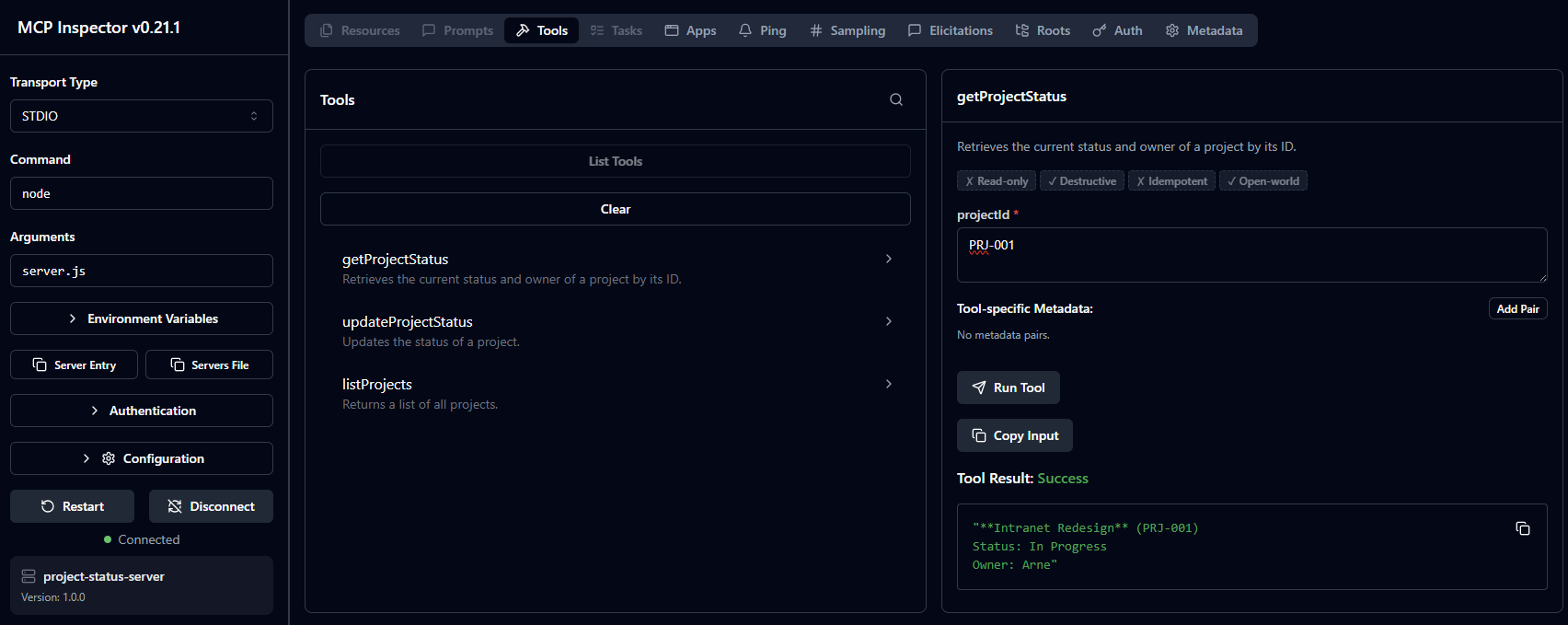
nodeserver.jsTRANSPORT = stdioClick Connect and you’ll see all three tools ready to use.
Caution
The Inspector spawns your server itself via STDIO, do not start the server separately before connecting. Also make sure TRANSPORT=stdio is set in Environment Variables, otherwise the server starts in HTTP mode and the Inspector cannot communicate with it.
A successful response:
What cool new features does Copilot Studio brings?

Learn how to create your own Conversational Copilot Action with Copilot studio

Learn how to create your own Copilot Action with Copilot studio